Starting Debugging
🔗 Original page — Source of this material
Starting Debugging
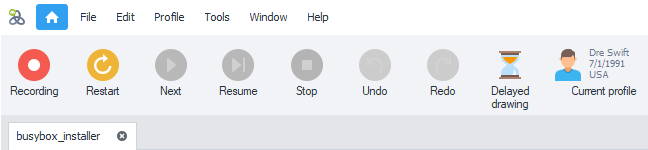
Let's take a closer look at the recording and debugging panel.
From the Beginning
Click this button to run the project from the very beginning. A new profile is generated.
Step by Step
When you start From the Beginning, you are offered the option to run the entire project Step by Step. In this mode, each subsequent action runs only after you click Next.

If you click Yes instead of Yes, step by step, the project runs directly to the end or to the next breakpoint. You can set a breakpoint by right-clicking any action.

You can switch between these two modes during debugging by using Next (step by step) and To the End (until a breakpoint).
From the Cursor
Click any action in the project, then click one of the start buttons to begin execution from that point.
This feature is invaluable when troubleshooting: you can adjust individual action settings and immediately test the changes without restarting the entire project.
Profile Regeneration
While testing a template, you can regenerate the identity values by clicking the dedicated button.
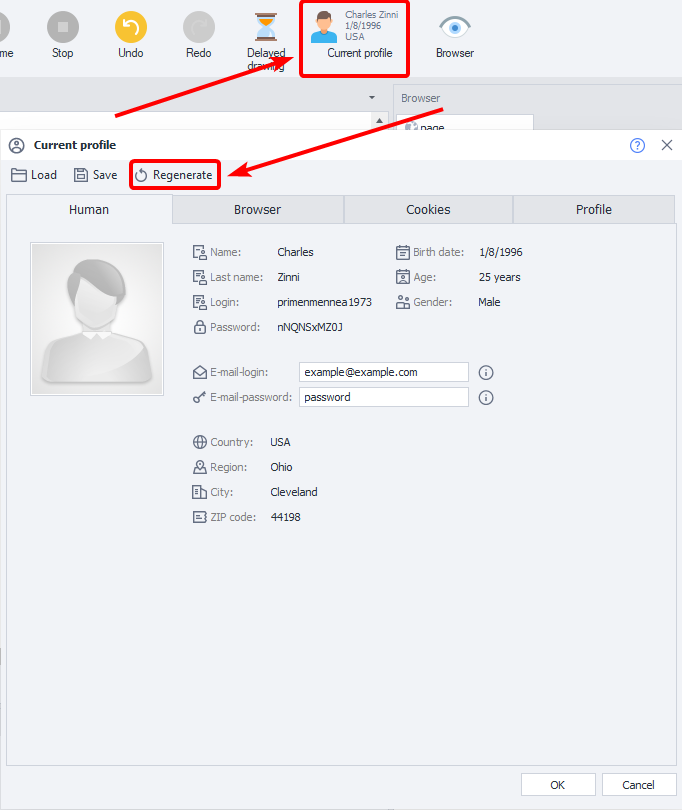
For example, this lets you check how a site or application responds to specific values.
For more information about profiles, see Profile Window.